บ้าน

บล็อก เกี่ยวกับ Guide Diagnosing Laptop LCD Failures With a Multimeter

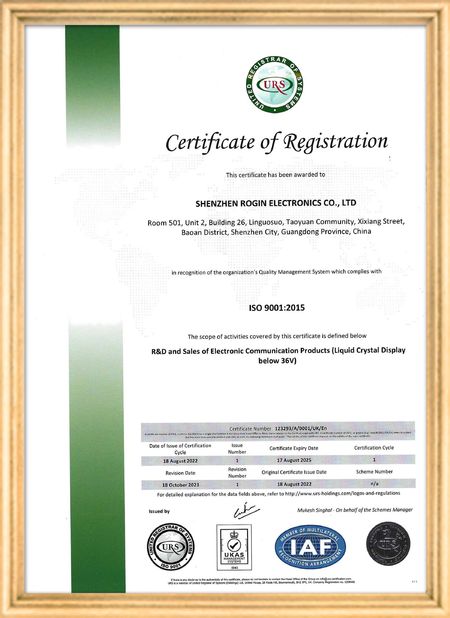
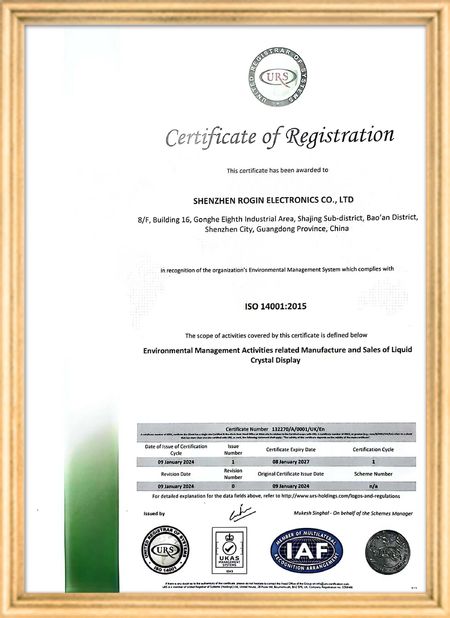
ได้รับการรับรอง
จีน Shenzhen Rogin Electronics Co., Ltd. รับรอง
ความคิดเห็นของลูกค้า
จอแสดงผลเหล่านี้ใช้งานได้ดีเยี่ยมในรถราง ความสว่างสูง ป้องกันแสงสะท้อน และมีความเสถียรแม้ภายใต้การสั่นสะเทือนเป็นเวลานาน ผู้โดยสารชื่นชอบการมองเห็นที่ชัดเจน

—— แคสเปอร์ ซอเรนเซ่น

สีสันแม่นยำ ตอบสนองรวดเร็ว และสตาร์ทติดง่ายในอุณหภูมิต่ำ เหมาะอย่างยิ่งสำหรับสภาพแวดล้อมที่สมบุกสมบันของระบบบนรถไฟ

—— นิโคล เบ็คเกอร์

การติดตั้งง่าย ระยะอุณหภูมิที่กว้าง และความเห็นที่โดดเด่นในสภาพแวดล้อมที่สว่าง

—— จอฟานนี่

จอ LCD ความสว่างสูงเหล่านี้เหมาะอย่างยิ่งสำหรับแผงควบคุมอุตสาหกรรมของเรา จอภาพยังคงคมชัดแม้ภายใต้แสงแดดโดยตรงในโรงงาน และทำงานได้ตลอด 24 ชั่วโมงทุกวันโดยไม่มีปัญหาใดๆ คุณภาพระดับอุตสาหกรรมที่ยอดเยี่ยม

—— ลูคัส มิลเลอร์

สนทนาออนไลน์ตอนนี้ฉัน
บริษัท บล็อก
Guide Diagnosing Laptop LCD Failures With a Multimeter
ข่าว บริษัท ล่าสุดเกี่ยวกับ Guide Diagnosing Laptop LCD Failures With a Multimeter

When your laptop screen suddenly goes dark, don't panic. A simple multimeter can help you quickly identify power supply issues. This guide simplifies the diagnostic process, enabling you to check your LCD screen's power supply and determine whether the problem lies with the screen itself or its supporting components.

Preparing Your Multimeter

Begin by setting your multimeter to measure DC voltage. Before testing, identify your screen's rated voltage—typically marked near the power connector or available in the device specifications. Modern laptop screens commonly operate between 3.3V to 19V, depending on the model.

Testing Procedure

With the laptop powered off, carefully connect the multimeter probes to the screen's power connector terminals:

  • Place the red probe on the positive (+) terminal
  • Place the black probe on the negative (-) terminal or ground

Power on the device and observe the multimeter reading. Compare this measured voltage with your screen's rated voltage.

Interpreting Results

If the reading shows significantly lower voltage than specified or no voltage at all, potential issues include:

  • Faulty power adapter
  • Damaged motherboard power circuits
  • Loose or damaged cable connections

Systematically check each component: try a different adapter, inspect motherboard connections, and reseat all cables. If voltage readings return to normal after any intervention, you've likely found your culprit.

When voltage measurements match specifications but the screen remains nonfunctional, the issue may involve the LCD panel itself, the backlight, or other screen components requiring further diagnosis.

Safety Considerations

Always disconnect power before handling internal components. When working with exposed connectors, avoid touching multiple contacts simultaneously to prevent short circuits. These basic diagnostic techniques provide valuable information for determining whether to repair or replace components.

ผับเวลา : 2026-05-18 00:00:00 >> blog list
รายละเอียดการติดต่อ
Shenzhen Rogin Electronics Co., Ltd.

ผู้ติดต่อ: Mr. Kelvin Zhu

โทร: +86 15919061504

ส่งคำถามของคุณกับเราโดยตรง (0 / 3000)